Antenna Refresh Guide
Need fresh data? Follow the quick checklist below, then use the step-by-step section when you want extra detail. Best practices are called out so your workbook stays reliable and repeatable.
Quick checklist (do this in 60 seconds)
- Confirm Antenna add-in is installed (Home tab → Antenna) — no Antenna, no data party, soz.😔
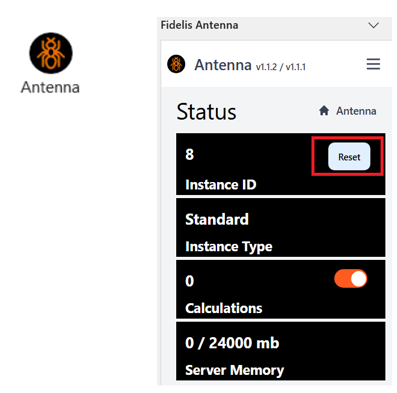
- Click Antenna → Reset in the task pane — start fresh, like hitting "undo" on a bad haircut (or not 👀).
- Data → Queries & Connections → Refresh All — sync everything at once.
- Visit any summary sheet and press Refresh All again — double-check, because spreadsheets are dramatic (Not Responding, blah blah 🎭).
- Verify the Snapshot Date shows the latest date — your timestamp of truth (don't live in the past, keep up). 📅
Step-by-step
-
Confirm Antenna is installed
Look for the Antenna plugin on the Home tab. If it’s not there, follow installation steps here: installation.

-
Reset Antenna (important)
Open the Antenna task pane (click Antenna), then press Reset. This ensures formulas are reinitialized and ready to fetch current values. After resetting, check the Snapshot Date to confirm freshness.
-
Refresh workbook connections
Go to Data → Queries & Connections and click Refresh All to update tables that feed pivot tables and reports. This keeps everything consistent.

-
Refresh example summary sheet(s)
Open any summary sheet, then Data → Queries & Connections → Refresh All to update the visuals and pivot results that rely on refreshed tables.
Troubleshooting tips
- Snapshot date hasn't changed: Retry Reset → Refresh All; if still stale, confirm Antenna connected to the correct environment.
- Pivot tables not updating: Right-click the pivot and choose Refresh if Refresh All didn't propagate.
- Errors after refresh: Save a copy and inspect the workbook for broken queries or missing source tables.
Refreshing the Antenna Add-in
We regularly update certain functionalities in the Antenna Add-in. Sometimes these updates may not appear immediately. To manually refresh the add-in, follow these steps:
-
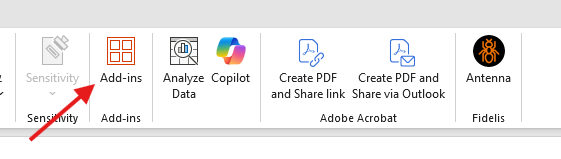
Go to the Home tab in Excel and click Add-ins.
-
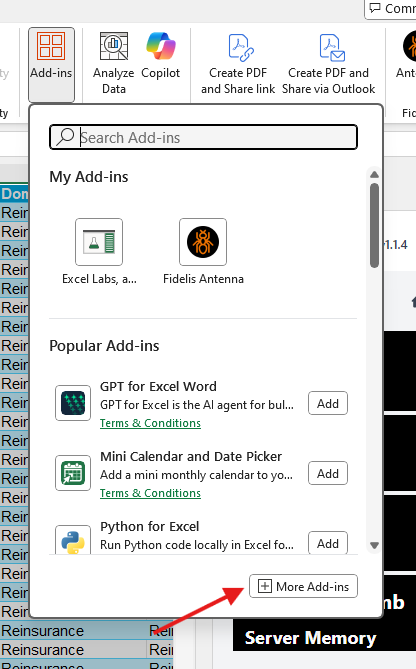
Click
+ More Add-ins.
-
Go to the Admin Managed section and click Refresh.
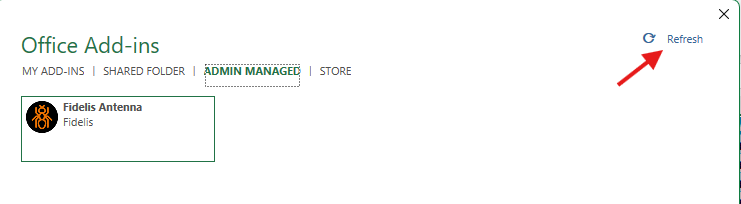
This will ensure your add-in is up-to-date with the latest changes.