Antenna Refresh Guide
Refresh your workbook so it shows the latest data — about 1 minute. Use the quick checklist for speed, or the step-by-step section when you want the detail.
Before you start
Make sure the Antenna add-in is installed in Excel (look for Antenna on the Home tab). If it isn't, follow the installation guide first.
Quick checklist (about 60 seconds)
- Confirm the Antenna add-in is on the Home tab
- Open the Antenna pane and click Reset to start fresh
- Data → Queries & Connections → Refresh All to sync the tables
- Open any summary sheet and Refresh All again
- Check the Snapshot Date shows the latest date 📅
Step by step
Step 1 – Confirm Antenna is installed
Goal: Make sure the add-in is available before you refresh.
Steps:
-
Look for the Antenna add-in on the Excel Home tab. If it isn't there, follow the installation guide.

Step 2 – Reset Antenna
Goal: Reinitialise the formulas so they fetch current values.
Steps:
-
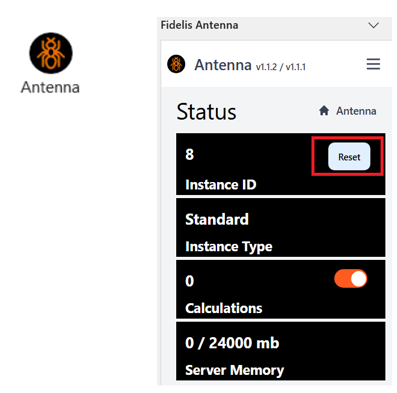
Open the Antenna task pane (click Antenna), then click Reset. Afterwards, check the Snapshot Date to confirm the data is fresh.
Step 3 – Refresh the workbook connections
Goal: Update the tables that feed your pivot tables and reports.
Steps:
-
Go to Data → Queries & Connections and click Refresh All. This refreshes the tables that the pivots and reports rely on, keeping everything consistent.

Step 4 – Refresh your summary sheets
Goal: Update the visuals and pivot results that depend on the refreshed tables.
Steps:
-
Open any summary sheet, then use Data → Queries & Connections → Refresh All again so the visuals pick up the latest data.
Troubleshooting
- Snapshot date hasn't changed: retry Reset → Refresh All. If it's still stale, confirm Antenna is connected to the correct environment.
- Pivot tables not updating: right-click the pivot and choose Refresh if Refresh All didn't propagate.
- Errors after a refresh: save a copy, then inspect the workbook for broken queries or missing source tables.
Refreshing the Antenna add-in itself
We regularly update functionality in the Antenna add-in. If an update doesn't appear automatically, refresh the add-in manually:
-
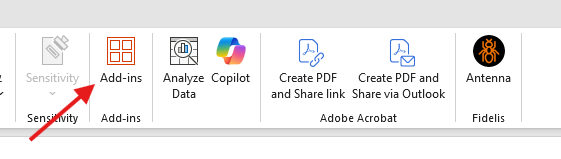
On the Excel Home tab, click Add-ins.
-
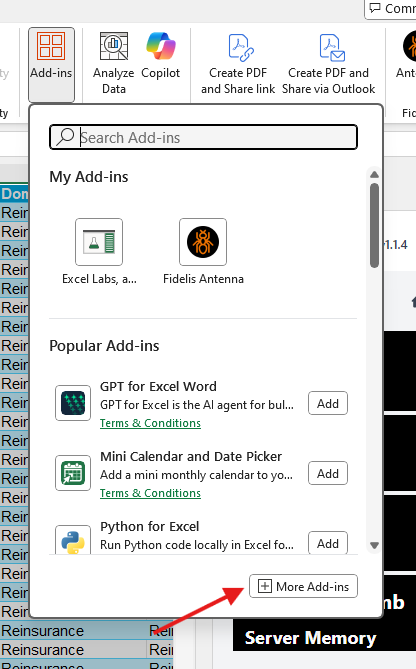
Click + More Add-ins.
-
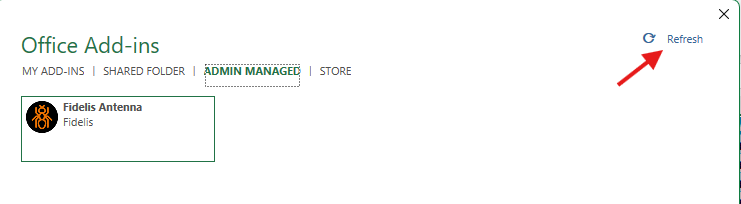
Go to the Admin Managed section and click Refresh.
This ensures your add-in is up to date with the latest changes.
What's next →
With fresh data in place, work through a tutorial — start with Bound, or browse all the Excel formulas.